
Open Event Form:
Click the Event Form button on the navigation bar at the top of the screen to open a new 25Live Event Form.

Basic Details:
Starting at the top of the form, enter event details. You must complete all required fields to save your request.
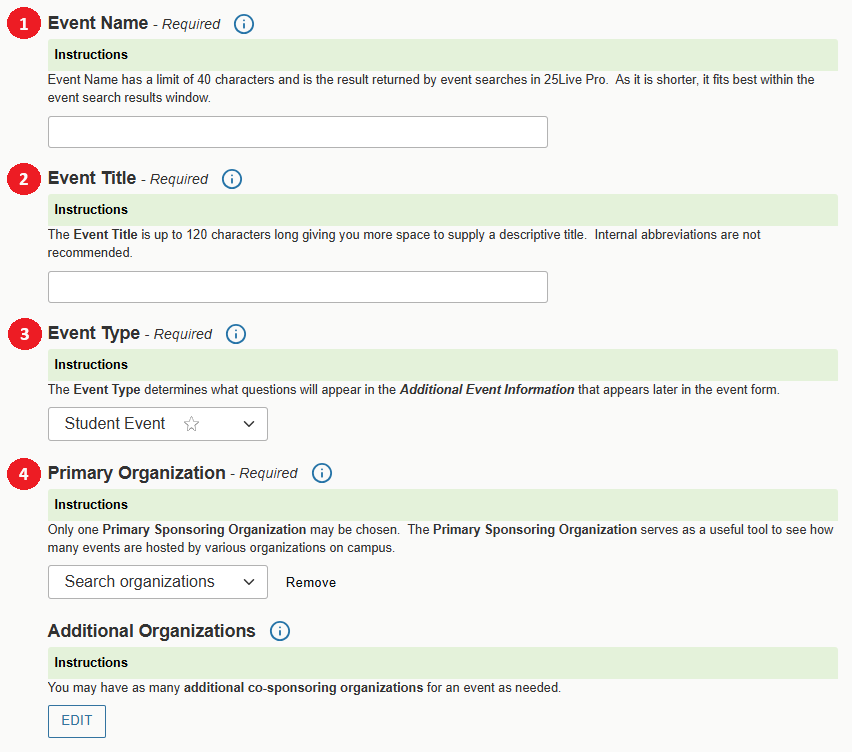
1. Event Name: Enter a name that clearly describes the event. You may enter up to 40 characters. This name will live only in 25Live and is used for administration and reporting.
2. Event Title: You may enter up to 120 characters. Please do not use abbreviations.
3. Event Type: Student Event is the only option and will be selected by default.
4. Primary Organization: Indicates the event host, e.g. your department or club name. Additional co-sponsoring organizations may also be added.
Attendance and Details:
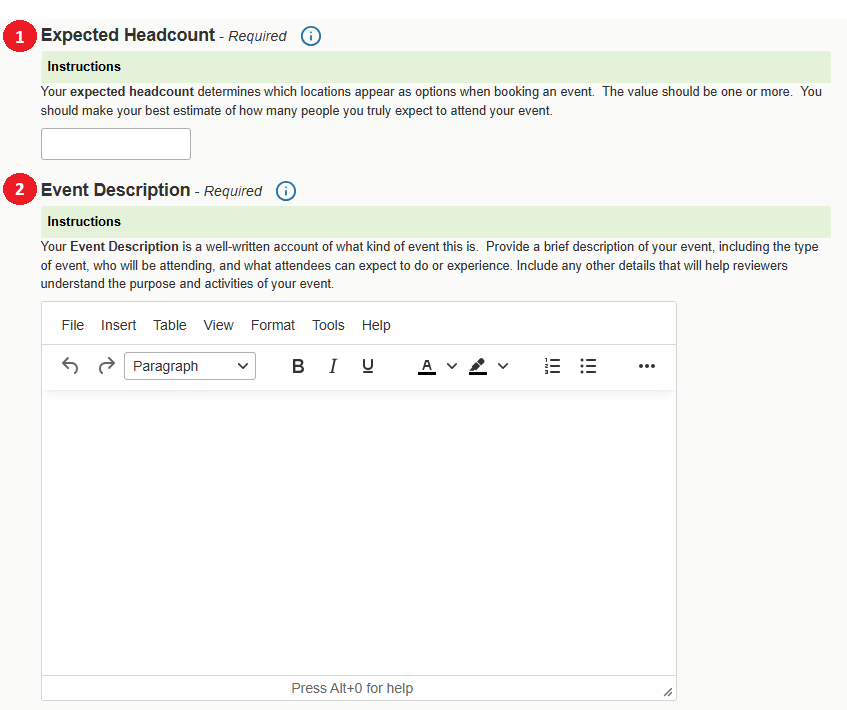
1. Enter an Expected Headcount for the event.
- This information is used to find a room appropriate for the number of attendees and is also sent to Service Providers.
2. Add an Event Description.
- Event description should provide a sense of who, what and how. Briefly explain what attendees can expect to do or experience.
Date and Time:
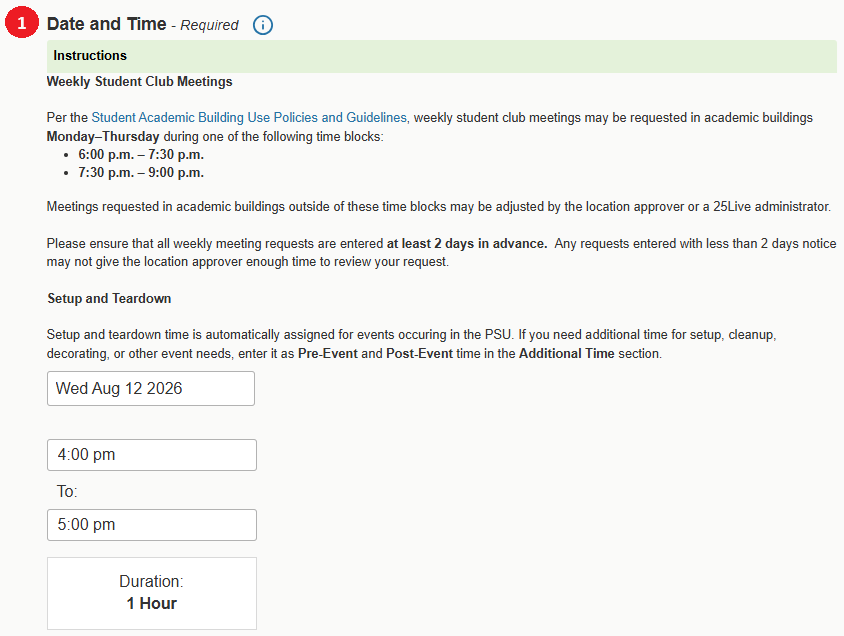
Next, specify the date and time of the event. If the event occurs on multiple days, you will enter details in the next step.
1. Select a Date and Time: Weekly club meetings scheduled in academic buildings should be scheduled Monday - Thursday only. Suggested time blocks are 6:00 p.m. – 7:30 p.m. or 7:30 p.m. – 9:00 p.m. For more information about academic building policies, please review the Student Academic Building Use Policies and Guidelines.
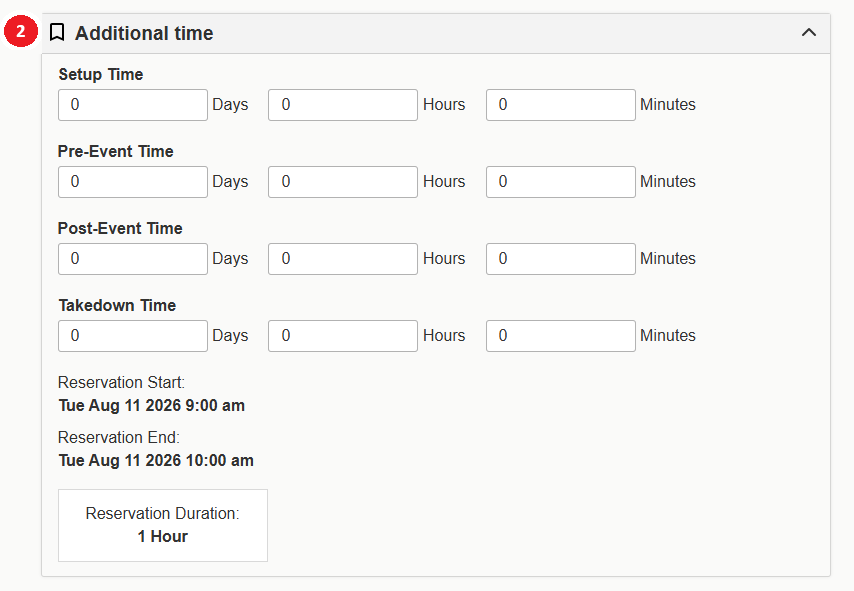
2. Additional Time: You may add extra time for setup & takedown or pre & post-event activities. For example, you may need 30 minutes to setup for the event and another 15 minutes to allow guests to arrive before the event starts.
Multi-Day Events:
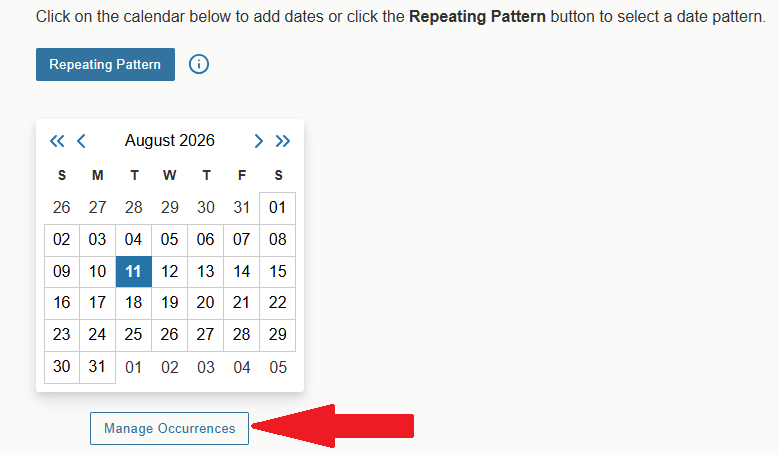
In the calendar, the date you specified in the Date and Time section will already be selected. If your event occurs on more than one day, please use the calendar to select additional dates. A list of your selections will appear alongside the calendar. If necessary, you may adjust event hours for any date by clicking on the Manage Occurrences button.
Location Search:
One-time events that require services such as food (whether purchased or self-provided), AV equipment, or room setup should be scheduled in the Plemmons Student Union (PSU). Academic buildings are generally not equipped to accommodate these types of events.
Weekly club meetings that do not require additional services should be scheduled in academic buildings Monday–Thursday. Alternatively, to request a weekly meeting in the Student Union, please submit this form.
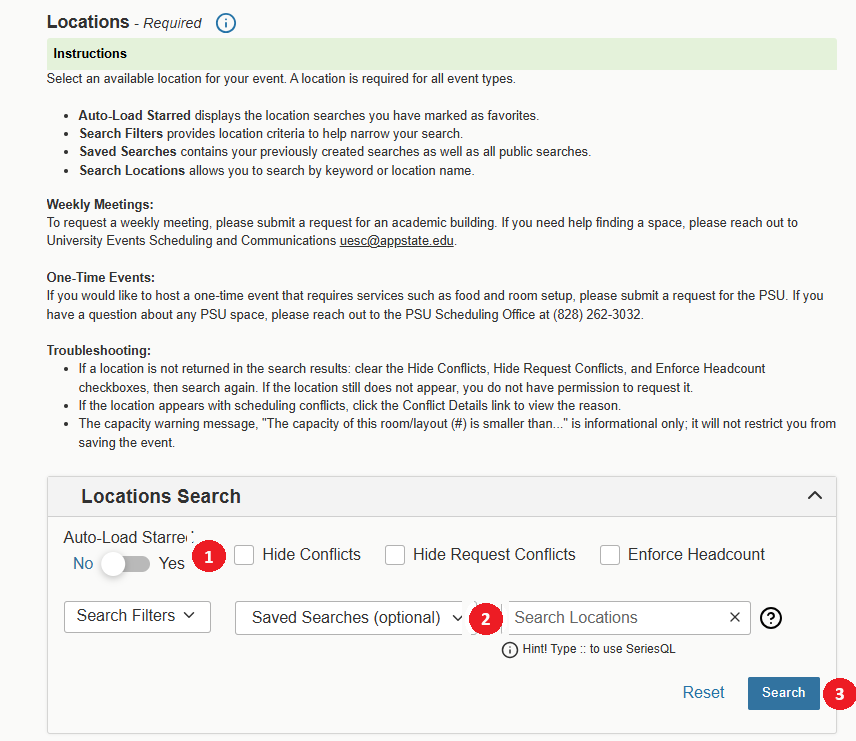
1. Hide Conflicts, Hide Request Conflicts & Enforce Headcount: These options should be unchecked to see all conflicts and potential rooms.
2. If you know the location you want for your event, use Search Locations to search by location name. You can either use the building code or building name. For example, you can search using PSU or Plemmons Student Union.
*Alternate ways of searching for rooms are by using Search Filters or Saved Searches. Search Filters let you select categories, features, layouts, and capacities. Saved Searches include a defined set of locations that may be public searches or searches created and saved by you.
3. As you search, 25live will check venue availability based on the dates and times specified.
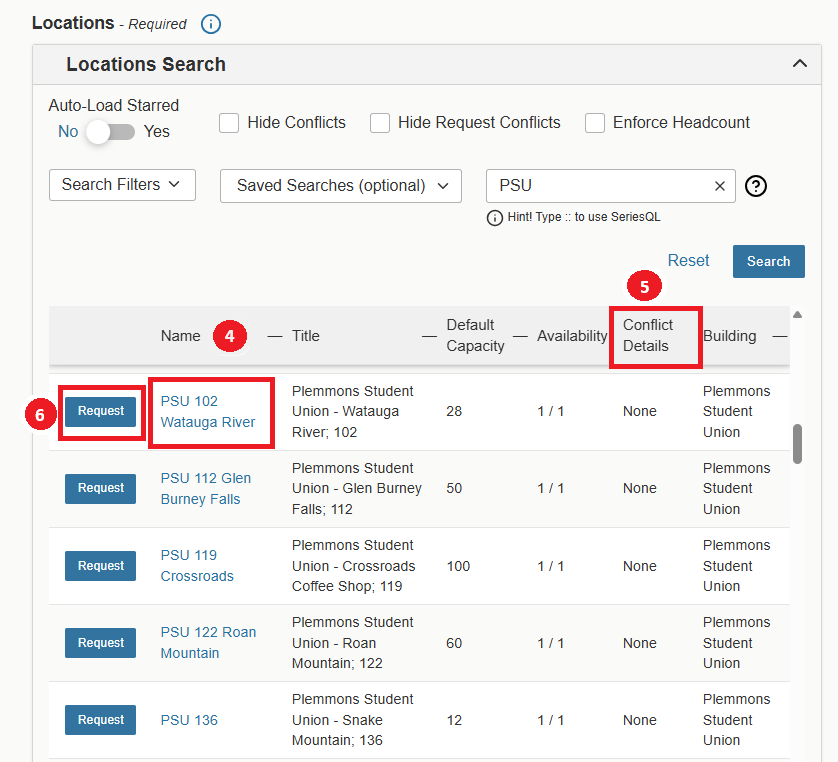
4. Select linked titles to view location details.
5. If applicable, click on Conflict Details to view why a location is not available.
6. Once you have identified the location you would like to request, click the Request button. This will add the location to the event form.
*Please note, if your event will need more than one room you can request mutliple rooms in a single event request.
Resource Search:
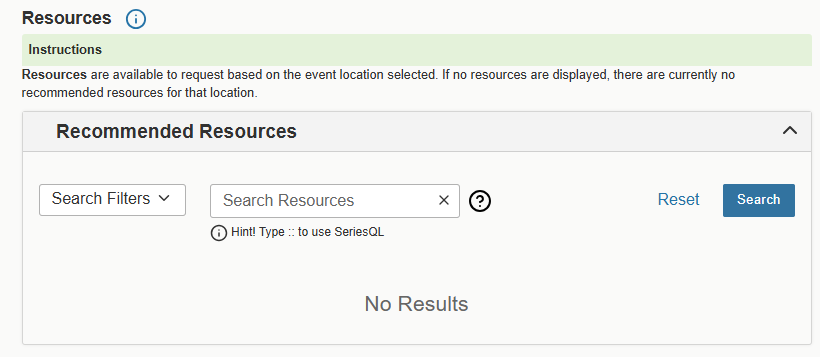
Resources are equipment, services, or other items associated with location reservations.
Users cannot search for resources. Instead, 25Live provides Recommended Resources based on the event location selected. If no resources are displayed, there are currently no recommended resources for that location.
Additional Event Information:
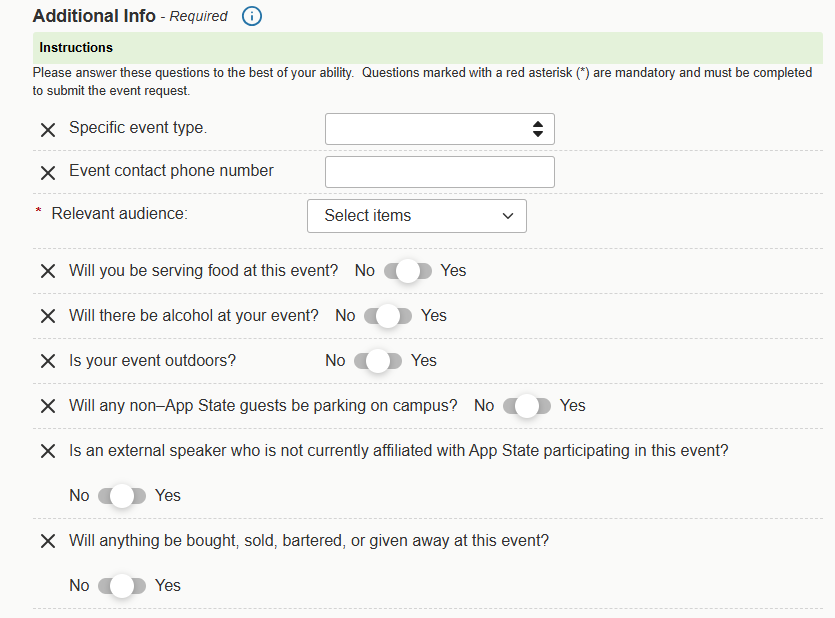
Depending on the event type you selected earlier in the event form, you may have questions that need to be answered in order to complete the form. Below is an example of questions you may see on the event form.
Event Comments:
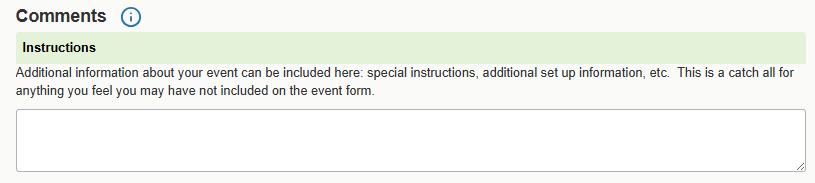
Event Comments: You may leave additional notes about your event for related staff in the comments box.
Save Event:
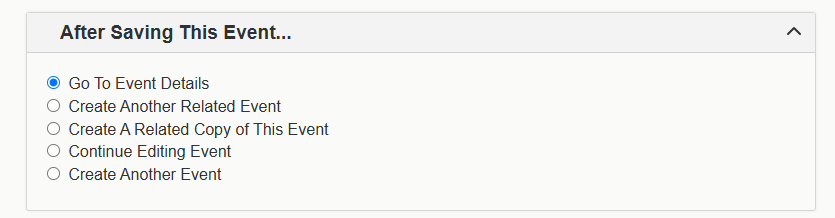
In the section After Saving This Event, you may choose the area of 25Live where you want to be taken after saving the event form.
Tips:
- The option to Cancel the event form is always available in the bottom right corner of the page, alongside the options to Preview and Save. If you select Cancel, be aware that your selections or changes will not save.
- Do not simply close your browser to cancel the event form. If locations and resources have already been selected, they will be locked as pending, restricting other users from requesting them. Please be sure to click Cancel.
- The event request reference number is displayed after the event is saved. You can use this number later to quickly find the event in 25Live.
Get Help:
- For additional assistance, contact the Office of University Events Scheduling and Communications at uesc@appstate.edu or submit a 25Live support ticket.
- For questions about the Plemmons Student Union (PSU), please contact the PSU Scheduling Office at 828-262-3032 or studentunion@appstate.edu.